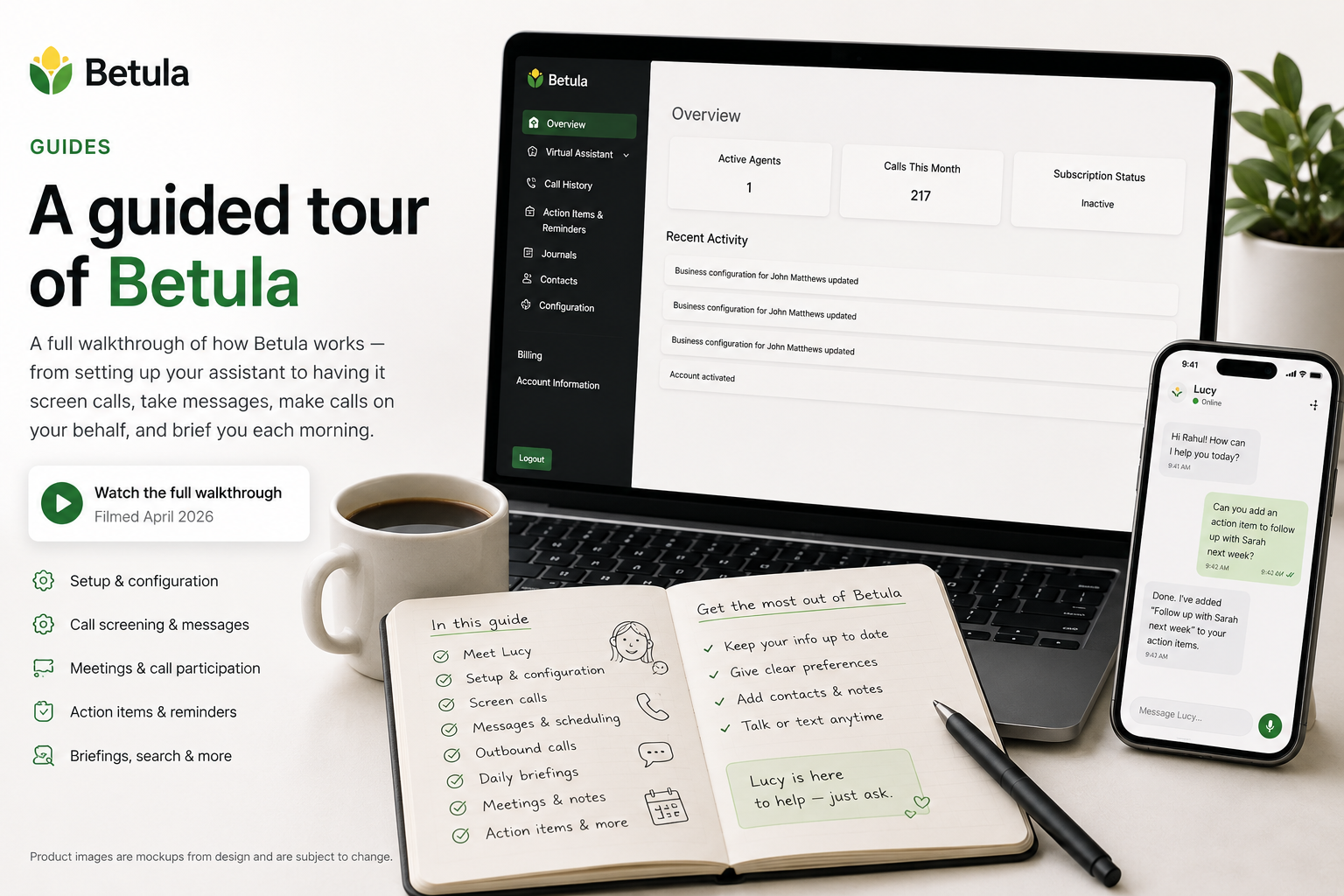
This is the most complete walkthrough of Betula we have right now. The video below covers everything from setting up your assistant to having it screen calls, take messages, make calls on your behalf, and brief you each morning.
It was filmed in April 2026, so a few things have changed since. I'll cover those at the end.
What the video covers
For quick navigation, the video is organized in chapters:
- Introduction — what Betula is and who Lucy is
- Your contact card — what your assistant knows about you and how to edit it
- Billing — how the $2.50/month base plus pay-as-you-go pricing works, and how to set a spend limit
- Real-time text alerts — getting live updates when a call comes in, and texting Lucy to relay your words to the caller while you stay silent
- Spam and call blocking — how Lucy screens calls and how to block numbers
- Two ways to use your Betula number — either give out your Betula number and keep your personal one private, or forward your existing number to Lucy
- What your assistant does for your callers — taking messages, scheduling appointments, accepting support tickets
- What your assistant does for you — outbound calls, reminders, daily briefings, local business search, journaling, memory, search across stocks, news, weather, flights, and hotels
- Languages — Lucy reads and writes in dozens of languages in their native scripts; voice quality is best in the major languages, and you can always fall back to text
- Call forwarding setup — step-by-step for iPhone users
If you're new to Betula, this video is the fastest way to see what's possible.
What's new since the video
Since April, two releases have shipped. Here are the things you'll see in the product today that aren't in the video.
Spam handling got smarter
Two important changes:
- No alert when a caller doesn't speak. A large share of spam calls are like this — the dialer connects, hears the agent answer, and hangs up. You'll no longer get a text alert for these. The call still appears in your call history if you want to see it.
- Business-level blocking. If you block a caller from "ABC Solar," Lucy will block anyone else who solicits on behalf of ABC Solar in the future, even if they call from a different number. The agent attempts to capture the business name during spam calls and uses it to extend the block.
The agent in your meetings
This is the most significant new capability. Lucy can now sit in on your meetings and take notes, in two ways:
- Speakerphone mode. You're in a one-on-one or small in-person meeting. You call Lucy, put your phone on speaker, and let her listen. She tags speakers as best she can, though everyone's audio is coming through your phone's microphone on one channel — so the tags will look like John [speaker 1], John [speaker 2]. Useful, but imperfect.
- Add-participant mode. You call Lucy and ask her to add another person to the call, by name from your contact list or by phone number. Now each participant is on a separate channel, and speaker identification is clean.
In both modes, anyone in the conversation can address Lucy directly to ask a question. When they want her to stay quiet, they can phrase it however they like — "Lucy, give us a minute," "Lucy, hush" — and she'll always reply with one specific line: "I will stay quiet." That exact phrase is intentional. It's how you know the request was understood.
A clearer dashboard, action items, and small touches
A handful of changes that make day-to-day use smoother:
- Action items, alongside journals. Action items now show up in the UI next to your journals and reminders. Lucy can create them implicitly from a call after it ends, or you can ask her to create one explicitly during a call ("add an action item to follow up with Sarah next week"). You can edit, complete, or delete them from the dashboard.
- Knowledge search and quick math. You can ask Lucy general knowledge questions ("what year did the iPhone launch?") and she'll answer. She'll also work through quick calculations for you — useful for tips, splits, and sanity checks.
- Background music toggle. Some callers found the low background audio during silences reassuring; others found it distracting. You can ask Lucy to turn it off at any time.
- Long messages come as a webpage. When Lucy has a lot to tell you, instead of a long SMS that arrives in fragments, you'll get a single text with a link to a clean page.
- A "Connecting…" indicator when you text. So you know your message is being processed, especially after an idle conversation has timed out.
- No stale items in your daily briefing. The briefing now avoids repeating the same news two days in a row.
- Address callers the way you want. If you've added a note to a contact like "refer to her as Li," Lucy will use it. If you create a contact manually, she'll greet that person by name the first time they call.
- "Betula Assistant" on outbound caller ID. When Lucy makes a call on your behalf, the recipient sees Betula Assistant as the registered business name — less likely to be ignored as a spam call.
For the full set of June changes with more detail on each, see the Notes from the June 2026 release post in the Product section.
Getting started
Pricing is unchanged from the video: $2.50/month base, then pay-as-you-go, with a spend limit you set. A real human is always one support ticket away.
To get your own assistant, visit betula.ai or call or text Lucy at (844) 383-2644 — you'll be talking to one.
Thanks to Claude for editorial support on this post.